Showing posts with label Hardware / Software. Show all posts

Thursday, August 24, 2017

It Never Hurts To Go Looking: Courthouse Treasures


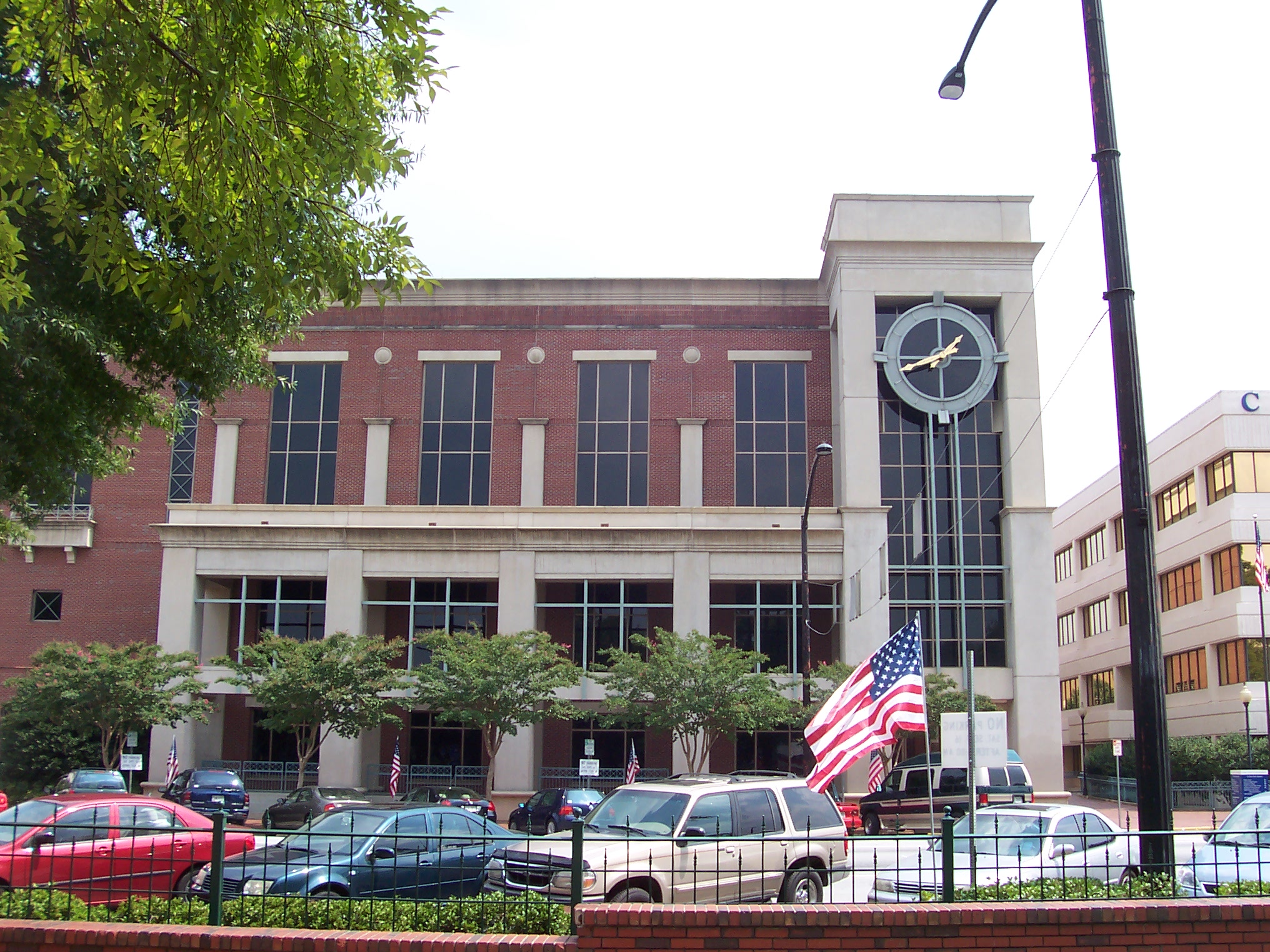
Courthouse, Cobb County, Georgia;
By HowardSF at English Wikipedia (Own work) [Public domain], via Wikimedia Commons

Smartphones. Tablets. Internet. Scanners. There is so much technology that enhances our ability to research and learn more about our ancestors. It took a recent trip to a county courthouse to remind me that old courthouse records can be just as important and meaningful to our research.

During a recent stay in Georgia, I took part of day to visit the Cobb County courthouse in Marietta, Georgia. It seemed the logical place to go since, for some reason, few Cobb County marriage or probate records had been digitized and made available for online research.

Getting Ready - The day before my visit, I did several things that really helped my efforts. First I called the Switzer Library in Marietta, Georgia, and spoke with a helpful person in their Georgia (Genealogy) Room. After I explained the type of information I was seeking, she reminded me, with a friendly voice, that the old records up to 1864 "were burned, you know, during the war" but that later records were all housed in the county courthouse. She also explained that extensive indices for these records were not available at the Library. This call helped me know that the courthouse was exactly where I needed to go for my research.

The second thing I did prior to my visit was to look through my genealogy software, Family Tree Maker, and make a list of those ancestors and some of the relatives from Cobb County for whom I wanted to locate a marriage record, a will, or a probate packet. My handwritten list included:

  • type of record needed
  • name/names of person/s involved
  • probable date of the record

Getting Set - I'm glad to took time to visit the Cobb County, Georgia government's web site, because the county has several different court areas including juvenile, criminal, and probate. I set my GPS for the probate court address, marked the parking garage on Google Maps, and took a picture of my parking spot number with my phone. (I wasn't about to not use my available technology.)

Go - My first top was the Cobb County Probate Office. While there were no public indices to the old probate records, a very helpful clerk in the office offered to look up those people on my list to see if probate records for any of them were housed in that office. From my list of six, only one had any probate records, my second great grandfather, Thomas D. Perkinson. Interestingly, none of the records were indexed under his name. Thomas had died intestate, so all of the records were indexed with the name of his wife Mary and a son William Perkinson, and the records dealt with their efforts to settle Thomas' estate.

As for the other five will or probate records I was seeking, the Probate Office clerk suggested that I might check surrounding counties for records. If my ancestor had owned property in another county, the will might have been probated there instead of in Cobb, their county of residence. Otherwise, the absence of any probate records generally suggests that my other ancestors did not actually own any property or items of value. The suggestion to look in other counties was an idea I need to persue in the future.


After a few minutes, the Court Minutes book was brought out for my use. The probate court did not require the use of white gloves on those old pages; I was simply asked to turn the pages carefully. The book containing the records I needed was huge, about 24 in x 15 in x 3 in. It just barely fit on the desk available for public use. Turning its pages was like going back through time. All entries were hand written. You could see when a new ordinary clerk took over through the change of handwriting. And the handwriting, so beautiful, very ornate on some of the pages, page after page filled with that now rarely seen Spencerian Script.


The index listed four pages of records for this estate: Temporary Letters of Administration, two papers for Permanent Letters of Administration, and records for the Leave to Sell Thomas' property. All four records were indexed under the name of "Perkerson", but the records themselves included both the name "Perkerson" and the correct name "Perkinson".

I was able to take pictures of all of the records with my smart phone then later transcribe them using Transcript, a wonderful freeware program by Jacob Boerema. By reading the transcriptions, I was able to construct a timeline and follow the probate process for the estate of Thomas D Perkinson.

Thomas D Perkinson died on 30 Sep 1875. In the opening of the October term of court, 7 Oct 1875, his widow Mary Putnam Perkinson and his oldest son, William Howard Perkinson, applied to the court to receive Permanent Letters of Administration in order to settle Thomas' estate. The record included that statement that Thomas had "left considerable estate" which needed to be handled. A further statement estimated the value of the estate to be $15,000. The Ordinary was on vacation, so the court gave only Temporary Letters of Administration. In addition, five men were named as appraisers of the estate, among whom were an H Putnam (who might have been Mary Putnam Perkinson's brother Henry) and an L Litchfield (who might have been the Lemuel Litchfield who was married to Thomas and Mary's daughter Nancey Ann Perkinson).

In the November 1875 term of court, Mary and William Howard appeared in court and swore that "to the best of their knowledge" Thomas had died without a will. The actual Permanent Letters of Administration were granted to Mary and son William Howard on 6 Dec 1875 during December court.

By February of 1876, the appraisers had apparently studied the land Thomas owned and had reported to the court; the document to this effect was not recorded in the minutes book. What was recorded was this description of the real estate owned by Thomas. It consisted of
"numerous lots of wild or unimproved land, scattered, in different counties through the state, a great many of said lands being of very little value, and will not pay for the expense of advertising and selling in the usual way [so] the Court being notified that it will be of interest of said estate, to sell these lands at private sale, it is therefore ordered, that [the administrators be] authorized to sell and convey the wild or unimproved lands at private or public sale as their judgment may dictate and to the best interest of said estate."
Basically, Mary and William were given permission to sell the lands any way and for any amount they could get in order that Thomas' estate be settled. How I wish the final return for Thomas' estate had been recorded in these records. It would have been interesting to learn exactly where the properties had been located and who purchased them. Regardless of the final outcome for the probate process, these Court Minutes records were a real treasure to find and read.

My next courthouse stop was at the county's License Office. Today this is where people apply for a marriage license, a weapon carry permit, or papers regarding residence status. It was an interesting and busy office. Fortunately for me, the License Office had a bound index to the marriage records stored there. According to the index, the only existing marriage record I was seeking was that of my Great Grandparents Albert Bell Vaughan, Jr. and Georgia Camp.


Again, I was presented with a large volume of records and was allowed to photograph the desired record. I even smiled when I saw, once again, the signature of H. M. Hammett, the Ordinary of Cobb County, the gentleman who had signed papers relating to settling the estate of Thomas D Perkinson six years prior to this marriage. I had known of their marriage date for a number of years, but there was something very special about actually holding that record book and seeing the official record for the beginning of their married life. It was another courthouse treasure to add to my files.

Marriage Record for Albert Bell Vaughan, Jr, and Georgia Camp

Lessons Learned:

  • When looking through old, handwritten documents such as these, it is not that unusual to find various spellings of an ancestor's name. These documents were generally written by others based on oral information given to them.
  • The contact I made with the city library and my use of the county government's web site helped my visit to go very smoothly. As the saying goes, prior preparation prevents poor performance.
  • I was surprised at the emotional impact of seeing these records. It is one thing to read information digitized online or recorded in a database; it can be something a little different to actually hold an original record written at a specific point in your ancestor's life.
  • I am now starting some lists in my Genealogy Bullet Journal of other Courthouse Treasures I want to search for in the future. I need to include looking for probate records of my Cobb County ancestory in some of the neighboring Georgia counties.
#bulletjournal #genealogybulletjournal #campgenealogy #georgiagenealogy #genealogyhardwaresoftware #lessonslearned #perkinsongenealogy #researchtips #thoseplacesthursday #vaughangenealogy

Update:  You may want to look at this You Tube video from Genealogy Magazine about Courthouse Research. It provides a quick overview presented with a light touch.  https://www.youtube.com/watch?v=DjxOkXDU2cY&feature=youtu.be.

Saturday, August 20, 2016

My Top 10 Genealogy Programs

Gold Top 10 Winner by Sam Churchill / flickr


Randy Seaver in his blog Genea-Musing recently posted about his favorite genealogy programs. It started me thinking about those programs and web sites I most frequently use in my genealogy research. After compiling my list, I realized that my research strategies would be vastly different without my Top Ten. Some are free, some fee, some are web sites, others are software that I see as essential for my research. They are listed below in alphabetical order (after all,, I was a teacher and librarian forever).

  • Ancestry - This fee site continues to provide online access to a growing database of records that would be beyond my means to physically locate on my own. Their shaky leaf hints provide suggestions of resources, events, or individuals for me to fully research myself.
  • Digital Archives of Norway - For those of us with Norwegian ancestors, this free site is a must. In addition to census records and information on Norwegian genealogy resources, the web site contains online images of church records from across the entire country. Yes, the text is written in Norwegian, but by keeping Google Translate on and some Norwegian vocabulary cheat sheets I found on Family Search, I have been able to learn so much about the Norwegian side of my family.
  • Family Search - This free web site of The Church of Jesus Christ of Latter-Day Saints provides online access to genealogy records from around the world. Some are similar to those records available through Ancestry. Other records are available only on Family Search. Some records are indexed, others must be browsed to locate information. The Family Search Research Wiki is filled with helpful hints, history and geographical information, and links to external web sites on specific counties or geographical areas.
  • Family Tree Maker - Bottom line, I would be lost without a genealogy software program, and Family Tree Maker remains my choice. It is my primary place to record everything that I learn about my family through my research. I like that I can develop new trees as I research a possible family relationship, then easily merge it into my primary tree if it is clearly a branch of my family tree. And, thanks to some new practices I started after my Genealogy Do-Over, I maintain much of my research log in the software itself.
  • Find A Grave / Billion Graves - These two, free web sites are helpful for locating cemeteries, burial locations, and photos of headstones or grave markers. Although the two sites are similar, each site maintains its own unique database. There is some duplication of names between the two sites, but using both sites greatly expands the scope of my research. I also appreciate the opportunity to gain access to Billion Graves' premium ($) resources by submitting new photos of grave markers or by transcribing information from photos of markers.
  • Fold3 - I maintain a fee subscription to Fold3 and use if frequently to search for military records, pension records, and, as a real bonus for one with many Georgia ancestors, access to old issues of The Atlanta Constitution. It has also proved helpful in locating information about the military units in which various family members have served.
  • Georgia's Virtual Vault - If you have ancestors who lived in Georgia, this is a fabulous web site. The Vault is a prime example of a state providing free access to certain digitized state records, i.e. marriage records, land purchases, confederate enlistment and pension records, maps, photos, the list goes on.
  • Google Drive - The free suite of programs has turned out to have many genealogical applications for me. I've found so many uses for Google Sheets, their spreadsheet app. Sheets lets me keep lists of materials to request for interlibrary loan, newspaper articles to locate, books to browse when I visit area university or genealogical libraries, timelines. Using Google maps, I have developed maps of family residences, ancestor farms in Norway, family migration routes, etc., all saved and accessible on Google Drive. The beauty is that all this information is available to me whenever and where I have internet access, on my smartphone, my laptop, or a library computer.
  • Hathi Trust Digital Library - HathiTrust is a partnership of academic and research libraries that provides both indexing and some full-view documents on its web site. It is similar to Google Books in providing access to numerous books that are out of copyright as well as access to a wide variety of research texts. The big plus for me is being able to have a guest account. This allows me to maintain my personal collection of go-to resources. I have a Georgia collection, a military records collection, and several others.
  • Transcript freeware - This free (for personal use) software was developed by Jacob Boerema. Basically, the software allows you to open a document pdf file or a photo into the top half of a split screen for viewing then to key your transcription of the document in the bottom half of the split screen. A previous post explains more about how you can adjust the light, font size, or contrast of the image to make the image easier to view. This is no autocorrect in Transcript, so your transcription can show the grammar, spelling, and punctuation of the document's writer. I've also found that transcribing a document often helps me pay closer attention to details that I might have overlooked were I just reading the document.
That is my list, for now, Already I can think of 10 more sites that have earned favored status for me. Now, it is your turn. What are your Top 10 sites or programs?

Tuesday, October 20, 2015

Tuesday's Tips : Research Tote, Version 2.0


photo posted on "Writing a Dissertation Literature Review - Tips to Consider"
by Fidel Martin, photographer unknown

This summer Mocavo posted a great Genealogy Research Guide. It contained tips for planning a research trip as well as a helpful section on things to carry with you.

Reading that guide prompted me to consider the things I use on a research trip. One of my early posts mentioned things I had in the research tote I carried with me to libraries and other research centers. That was three years ago. Now it is time to take another look at what is in my tote today.

Sure, I still have my legal pad, pens and pencils, sticky notes, a bookmark, and blank note cards. Today's tote also has some additional items including:

  • a jump drive - I'm finding that more and more libraries are allowing users to download resources, offsetting the cost of maintaining public access copiers. Other research locations have allowed me to e-mail pages from online resources to my e-mail address for this same reason.
  • my smartphone - So it's not in my tote, just always with me, but it has become my primary camera for screen shots of pages. I try to make sure I capture the page number on a shot whenever possible, taking several shots of a page to get the page number when it is available. Once home, I can look at the pages, expanding each to make it readable, then delete or print as needed. My smartphone also allows me access to my Ancestry tree so I can quickly check on birth / death dates, names of spouses, and other specific information that I need in my research.
  • my Flip-Pal - Nothing can beat my Flip-Pal for taking pictures of large pictures, maps, or documents. The stitching feature of Flip-Pal's software enables me to end up with a great reproduction.

I've also added a few new techniques which I use along with my research tote. Among them are:

  • using Google Drive - My Research Log is on Google Drive so it is conveniently with me as long as I have internet access. Another Google Sheet is an ongoing list of newspaper articles I want to locate and read as well as a Sheet of books not available for interlibrary loan, only for on-site use. When I know I will not have internet access, I print out the necessary sheets to take with me in my tote.
  • documenting title page info - When I take pictures of a resource, the very first photo is always of the title page and then a shot of the library's info (library location, call number, etc.). This way I know that the next 27 pictures are all from this book and where to find it should I need to use it again. This also provides information for a source in my genealogy software as well as a listing in my Research Log.
  • better notetaking - Once I've taken the title page photo, I start taking brief notes. First I list the title, then start a list of the person, place, reason I take each successive shot. Just brief notes, p 37 - Landmark Baptist Church, p 412 - John Ragsdale's property, etc. This way if it is days (or weeks) later when I finally look back at those photos, I know why I took them in the first place and can more easily find the information they contain.

These are just a few changes I've made over the past three years. Who knows what new tools and techniques I will add to my research tote in the next three.

Sunday, October 12, 2014

Now I Am Two

Birthday Cake With 2 Candles
By Rlevente via Wikimedia Commons

When I wrote my first post of this blog on October 12, 2012, I wondered if anyone would ever read my blog.  And there were more questions -- what to write about, how much to write in a post, how often.

Today, Celebrating Family Stories is two years old.  Thank you to those of you who read my posts, who share information with me, who contact me in a variety of ways, and who have bided with me as I continue to try and answer my questions.

What have I learned in two years?  For starters, NEVER be surprised at what I learn about a family member.  NEVER stop looking for elusive information, although taking a break from a person for a while can make me anxious to return later on.  NEVER underestimate the importance of having my facts straight before I write a post.  And CONTINUALLY to be surprised at the posts that seem to click with others.

My most read posts this year dealt primarily with using technology and organization in gathering family history.  The top five were:


As for my favorite posts, I especially enjoyed writing those where I felt I have started to know an ancestor as a person.  Among them are these three:

Now, let's eat some cake.

Thursday, August 21, 2014

What To Do, What To Do ...


Laptop keyboard before

As I glanced over the post I was composing, I noticed that almost every word I had typed on my laptop was misspelled.  I'm a former teacher.  Stuff like that just shouldn't happen.  As I looked more closely at my laptop, I saw a possible reason.  In four years of use, I had actually worn the letters off a number of the keys, 13 of them to be exact!  No wonder my typing caused such a mess.

13 worn keys, highlighted in orange

With a desktop computer, I could by a replacement keyboard for $15.  Not so with my laptop.  Individual replacement keys online were $5 each plus shipping.  So I headed to my local office supply store to look for a better solution.

I ended up purchasing a cartridge of black tape with white lettering for my P-Touch printer.  After doing a few sample letters, I came up with a size that closely matched the letters on my keyboard.  In a few minutes, my laptop looked like this.

Laptop keyboard after

I actually did this repair over a month ago.  The tape has stayed put, no loose pieces of tape, no edges sticking to my fingers as I type.  I'd say it was a successful repair.

Now I can enter data into Family Tree Maker, write blog posts, add notes to my research logs, key to my heart's content.  Sometimes, it is worth it to give a plan a try.


Tuesday, April 15, 2014

Tuesday's Tip: Transcribing Letters

Several years ago I visited the Manuscript and Rare Book Library at Emory University, Decatur, Georgia.  My purpose was to study the Camp Family Papers in their collection and, hopefully, to learn more about my 2nd GreatGrandfather Thomas Lumpkin Camp.

The documents were written by a variety of people and in different handwritings.  I was grateful that the staff at MRBL permitted users to photograph the photocopies in the files available for public research.

After I downloaded the photos to my laptop, I was anxious to transcribe them.  I first tried opening a letter photo in my laptop's photo viewer with the plan to transcribe each letter as a Word document.  I tried using both horizontal and vertical split screens to view the photo and my Word document at the time; I even tried using a second monitor with my laptop.  All of these methods were rather cumbersome, especially with all the "extras" at the top of the Word screen.  Frankly, it seemed to take a long time to transcribe a single letter, and I abandoned the transcription project after a few weeks.

Recently I came across an easy to use freeware program, Transcript, version 2.4.  Transcript 2.4 is just like the web site claims, it really "makes transcribing easier".  With it, I've finally been able to transcribe a number of the Camp letters and have found several interesting stories which I plan to share in future posts.


The screen shot above shows Transcript's clean, uncluttered work surface.  In the light blue box at the top of the screen is the document I plan to transcribe.  The white box below is my transcription area.  The center bar dividing the two boxes can be adjusted to divide the screen just as you want it.

Beneath the "File Edit Format ... " menu row is one ribbon of icons, primarily pertaining to the document you are planning to transcribe.  A box in the middle of the ribbon lists the title or image number of the document you are transcribing.  The small green arrow buttons (circled in green) let you move back and forth through a series of images.  This feature has been particularly helpful when I have had four or five images to cover one letter.

Another nice feature (circled in red) is the ability to zoom in or out of a document.  The brightness of your document can also be adjusted using the buttons circled in yellow.  Sometimes just a change in perspective helps clarify a word.

The actual transcription is done without any of those spelling errors or punctuation reminders that are part of using Word.  I like this because I'm trying to transcribe the actual spelling, punctuation, and capitalization used in each document.  No wiggly red or green lines, no auto correct to get in the way of an accurate transcription.

Each transcription is saved as a Rich Text File.  The RTF, in turn, can be opened in Word for formatting, spell check, or any other type of correction you may wish to make to your document.

Transcript is free for noncommercial use.  If you plan to use it for any transcriptions for which you will receive pay, a pro version is available, costing $15 Euros, about $21 US dollars.  Jacob Boerema, the programmer, will also accept donations from users of the program.  If you have handwritten documents to transcribe, Transcript will certainly make the job much easier.  Visit the Transcript web site  to download your copy.

Tuesday, January 21, 2014

Tuesday's Tips: Flip-Pal Tips

I was really excited to receive a Flip-Pal scanner for Christmas.  (Thanks, Santa!)  I had already started using it to scan some old family photos I had at the house.  Now it was time to take it along with me and see what it worked out in other situations.

I had to swing by our local public library to return some materials, so I decided this would be a great time to scan some materials in the Tennessee Room, our library's genealogy collection.  This way I wouldn't have to take books elsewhere in the library to use a coin-op copy machine.  I was also anxious to compare scanning pages with just taking page photos with my smartphone.

In the new materials section of the Tennessee Room was a book about researching your ancestors from Ireland.  The first chapter had a lot of basic information on various free websites that were good starting places for this type of research, pages I decided to scan.


Tip 1: Make your first scan information about the following series of scanned images.

Tip 1:  Rather than doing 3 or 4 scans just to have the cover and title page of the book, I wrote this information on an index card and made this my first scan.  This eliminated a few scans, plus I now had all the information, even the call number of the book, should I need to write a citation for this book.(1)  I also noted the starting and later the ending scan numbers done from that book on the index card.  Having the numbers made it simple to separate this book's scans from the magazine pages I also scanned.

I really found the scan numbers helpful as I was selecting scans to stitch and print.  I could see each scan's number as I opened it on my computer's photo viewer.  Then, I would check the number against my list, and I could be sure not a skip any of the scans.  Once I have a page printed, a website mentioned now bookmarked on my computer, or data recorded in my genealogy software, I can delete the scans and toss the card when I have finished with that group of scans.

That initial scan note card could also be helpful when scanning photos away from home.  It would be a quick way to note "15 family photos in Aunt Sue's house".  There would also be room to quickly note the names of the people in the photos for future reference.

Comparing the Flip-Pal with taking smartphone photos, the Flip-Pal was definitely the winner for me.  The weight of the Flip-Pal on the book kept the page open, so much easier than trying to hold a book open with one hand or another book, all while taking a picture with my phone.  I could also stay seated to use the Flip-Pal rather than having to stand up.  Trying to have good lighting on the page was also no longer an issue as the Flip-Pal provides its own light.  The nod, for me, definitely goes to the Flip-Pal.


Tip 2: A carrying case is helpful.

Tip 2:  My Flip-Pal did not have a carrying case, so I decided to make one.  I used a piece of upholstery fabric and quilted it to a polished cotton backing.  I decided to add a zippered pocket to my case.  Inside the pocket I have a lens cleaning cloth and have added a few blank index cards for future scanning sessions.  The Flip-Pal can now be carried safely in my genealogy tote bag.

I'll pass on future tips as I play around and learn more about using my Flip-Pal.

(1)  Grenham, John Tracing Your Irish Ancestors: the Complete Guide. Baltimore: Genealogical Publishing Co, c2012.

Wednesday, January 15, 2014

Wordless Wednesday (almost): Rev. Dr. Albert Bell Vaughan, Jr.

Dr. Albert Bell Vaughan, Jr.
ca 1910

The Reverend Dr. Albert Bell Vaughan, Jr. was my Great Grandfather.  I now have a very usable photo of him, thanks to my new Flip-Pal scanner.  The original photo pictured below is probably 100 years old, badly curled, and the heavy paper on which it was printed is splitting into plies.  It even has holes at the top and bottom as if someone had nailed it to a wall.  

I decided to scan it as my first Flip-Pal project.  It was amazing to see how the Flip-Pal stitched together 11 images to form the new picture.  After opening the stitched photo in Photoshop, I spent a few minutes cropping, doing a little touch-up, and converting to a version of black and white photography, ending up with the great picture above. 
  

Original photo, approximately 10 x 16 in.

Flip-Pal picture, stitched from 11 scans

Tuesday, October 8, 2013

Tuesday's Tips - My New Favorite Things


I've been using Family Tree Maker for over 10 years and decided after some months of debating with myself that it was time to update to the latest version, Family Tree Maker 2014.  My copy came in a bundle of vacation mail, then sat on my desk for another week before I had time to do the install.  I'm so glad I finally updated FTM.

However, even before my copy of FTM 2014 arrived, I had been reading Russ Worthington's Family Tree Maker 2014 Blog.  Each post discusses one tip or feature of FTM 2014, so when I finally had time to update, I felt Russ's blog was there to help should I run into any big problems.

All of my previous family trees uploaded to the new version without a hitch.  I decided the best way to check out new features was to add a new family tree to hold information I am gathering for a sister-in-law concerning her family.  The process for starting a new tree and adding information was basically the same as in my previous version of FTM.  But I started to do my happy dance when I added the first source for an Ancestry.com census record.  There, on the source template, is now a space for the web address of a source.  It had always been simple to do a copy and paste of a web address and put into the citation detail of a source.  The BIG difference now is that in FTM 2014, your copy / paste becomes an actual link to the web site you used.  This means you can click and return for a closer look at information.  It also means I no longer have to go another copy / paste onto a new screen to return to my original online document or database.  Just click the globe icon (indicated by the red arrow) and I go right to either the original document or the search screen for the document.


All this is part of why upgrading to Family Tree Maker 2014 is one of my new favorite things.